Free Online Instagram Carousel Splitter Tool
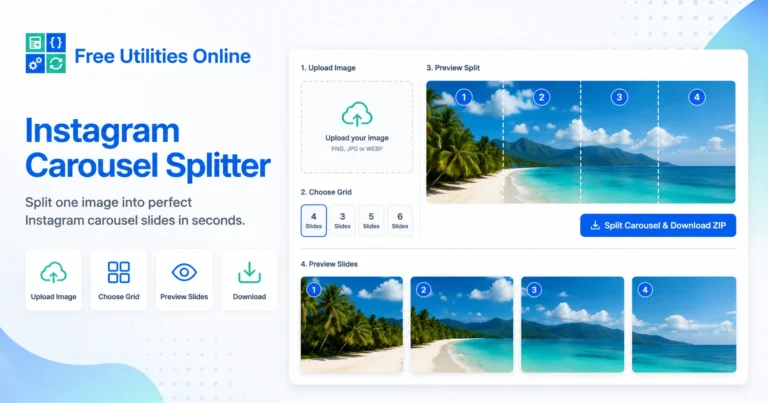
Split images for Instagram carousels online instantly with this free Instagram Carousel Splitter. Use the tool below to create swipeable carousel slides, seamless Instagram panoramas, square carousel posts and ready-to-upload image cuts directly in your browser.
1. Upload your image
2. Preview cuts
The vertical lines show where your carousel will be split.
3. Download your slides
Download each slide individually or export all images as a ZIP.
What is an Instagram Carousel Splitter?
An Instagram Carousel Splitter is an online tool that splits one large image into multiple separate slides for an Instagram carousel post. Instead of cropping and exporting each slide manually, you can upload an image, choose the number of carousel panels and download each slide as an individual image.
This is especially useful for creating seamless Instagram carousels, panorama posts, educational carousel posts, portfolio showcases, product breakdowns, before-and-after designs, social media tutorials and swipeable visual stories.
This Instagram Carousel Splitter runs directly in your browser, making it fast and simple to create carousel-ready images without installing software.
What can you use it for?
You can use this online Instagram carousel splitter to turn a wide image, design, infographic, screenshot, photo, artwork or layout into multiple swipeable Instagram slides.
For example, you may want to split a panoramic image into several square slides, divide a long design into a carousel sequence, create a seamless swipe effect, break a tutorial into step-by-step panels or prepare a social media post where each slide continues naturally into the next one.
How to use the Instagram Carousel Splitter
Step 1: Upload your image
Choose the image you want to split into carousel slides. You can use a design, photo, panorama, infographic, screenshot or exported creative asset.
Step 2: Choose the carousel format
Select the number of slides and the output style, such as square carousel slides, portrait carousel slides or a custom split layout.
Step 3: Download your carousel slides
Preview the split result, download the generated slides and upload them to Instagram in the correct order.
Instagram carousel splitter options
This Instagram Carousel Splitter can help with common social media design tasks such as:
- Split images for Instagram carousel posts
- Create seamless carousel slides
- Create swipeable Instagram panoramas
- Split wide images into square slides
- Split designs into multiple carousel panels
- Create Instagram carousel image cuts
- Create educational carousel posts
- Create product carousel slides
- Create portfolio carousel layouts
- Create before-and-after carousel posts
- Prepare Instagram-ready slide exports
- Preview carousel cuts before downloading
- Download individual carousel slides
- Create browser-based image splits
- Use the tool without installing software
- Process images directly in your browser
The final output may depend on the original image size, selected slide count, chosen aspect ratio and how you upload the final slides to Instagram.
Why split an image for an Instagram carousel?
Splitting an image for an Instagram carousel lets you create a swipeable visual experience. Instead of showing one static image, you can guide users through a sequence of slides.
This works especially well for designs that need more space than a single post, such as tutorials, checklists, product explanations, portfolio presentations, moodboards, panoramic photos and long-form visual content.
A carousel can also make users spend more time interacting with your post because each swipe reveals the next part of the image or story.
What is a seamless Instagram carousel?
A seamless Instagram carousel is a carousel where each slide connects visually to the next one. When users swipe, the design appears to continue across slides.
This effect is often created by designing one wide canvas and then splitting it into equal carousel panels.
For example, a 3-slide square carousel can be designed as one wide image and then split into three separate square images. When uploaded in order, the post creates a continuous swipe effect.
Basic Instagram carousel size examples
The best size depends on the style of carousel you want to create. Common Instagram carousel formats include square, portrait and landscape-style layouts.
Square carousel
A square carousel uses a 1:1 ratio.
1080 × 1080 px per slideThis is a common format for clean, simple carousel posts and grid-friendly layouts.
Portrait carousel
A portrait carousel uses a vertical format.
1080 × 1350 px per slideThis format gives more vertical space in the feed and is popular for educational posts, tutorials, quotes, product features and content-heavy carousels.
Wide seamless carousel
A seamless carousel starts with a wide canvas and splits it into multiple panels.
3 square slides: 3240 × 1080 px source image
5 square slides: 5400 × 1080 px source image
10 square slides: 10800 × 1080 px source image
Each output slide keeps the same height and width, while the source image is divided into equal parts.
How carousel splitting works
Carousel splitting takes one image and divides it into equal slide sections.
For example, if you upload a wide image and choose 3 slides, the tool cuts the image into 3 separate files. Each file becomes one Instagram carousel slide.
Original image → Slide 1 + Slide 2 + Slide 3When you upload the slides in the same order, users can swipe through them as one continuous carousel.
Example: split a 3-slide carousel
If you want to create a seamless 3-slide square carousel, start with a source image that is three times wider than one slide.
Source image: 3240 × 1080 px
Slide 1: 1080 × 1080 px
Slide 2: 1080 × 1080 px
Slide 3: 1080 × 1080 px
This creates three square images that connect visually when users swipe.
Example: split a 5-slide carousel
For a 5-slide square carousel, the source image should be five times wider than one slide.
Source image: 5400 × 1080 px
Slide 1: 1080 × 1080 px
Slide 2: 1080 × 1080 px
Slide 3: 1080 × 1080 px
Slide 4: 1080 × 1080 px
Slide 5: 1080 × 1080 px
This is useful for step-by-step tutorials, visual storytelling, portfolio showcases and product explanations.
Example: split a portrait carousel
Portrait carousel slides give you more vertical space per slide.
3 portrait slides: 3240 × 1350 px source image
5 portrait slides: 5400 × 1350 px source image
This format is useful when your carousel includes text, screenshots, instructions, product details or educational content.
Instagram carousel ideas
Educational carousels
Split a tutorial, checklist, lesson, guide or step-by-step explanation into multiple slides.
Portfolio carousels
Show a design project, case study, visual identity, website layout, photo shoot or creative process.
Product carousels
Create slides for product features, benefits, use cases, testimonials and calls to action.
Panorama posts
Split a wide photo or landscape image into several swipeable sections.
Before-and-after posts
Create a carousel where users swipe from the original version to the final result.
Infographic carousels
Break a large infographic into easier-to-read slide sections.
Social media storytelling
Use each slide as one part of a visual story, campaign or content sequence.
How to upload split carousel slides to Instagram
After downloading your split images, upload them to Instagram as a multi-image carousel post.
Make sure the slides are selected in the correct order:
Slide 1 → Slide 2 → Slide 3 → Slide 4If the order is wrong, the seamless swipe effect will not work correctly.
Before publishing, preview the post inside Instagram to make sure the first slide, transitions and final slide look right.
Tips for seamless carousel design
Design as one wide canvas
For a true seamless effect, create one large horizontal design first, then split it into equal slides.
Keep important text away from cut lines
Avoid placing important words, faces, logos or small details directly on the slide boundaries.
Use guides
When designing in tools like Canva, Figma, Photoshop or Illustrator, use guides to mark where each slide will be cut.
Keep slide order clear
Rename files or download them in order so you can upload the carousel correctly.
Test the first slide
The first slide is the hook. Make sure it works well on its own and encourages users to swipe.
Use consistent spacing
Consistent margins, typography and alignment make carousel posts feel cleaner and easier to read.
Keep mobile readability in mind
Most Instagram users view carousels on mobile, so text should be large enough and visually clear.
Instagram carousel design tips
Start with a strong hook
Use the first slide to attract attention. A clear headline, bold visual or direct promise can encourage users to swipe.
Tell a simple story
Each slide should move the user forward. Avoid overcrowding one slide with too much information.
Use visual continuity
Shapes, lines, arrows, backgrounds and image elements can continue from one slide to the next.
Add a final call to action
The final slide can invite users to save, share, comment, visit a website or follow your account.
Keep branding consistent
Use consistent colors, fonts, spacing and visual style across the entire carousel.
Avoid tiny text
Small text may be hard to read on mobile. Keep copy short and use enough contrast.
Square vs portrait Instagram carousels
Square carousels
Square carousels are simple, balanced and easy to reuse across platforms. They work well for visual posts, portfolio previews, quotes, product shots and grid-friendly designs.
Portrait carousels
Portrait carousels offer more vertical space. They are useful for educational content, longer text, tutorials, checklists and designs that need more room in the feed.
Both formats can work well. The best choice depends on your content, design style and posting strategy.
Instagram carousel splitter vs crop tool
Carousel splitter
A carousel splitter divides one image into multiple equal slides. It is useful for seamless carousels and swipeable panoramic content.
Crop tool
A crop tool cuts one selected area from an image. It is useful when you only need one final image or want to reframe part of a photo.
Use a carousel splitter when your goal is to create multiple connected slides from one larger design.
Instagram carousel splitter vs carousel maker
Carousel splitter
A carousel splitter takes an existing image or design and cuts it into separate carousel slides.
Carousel maker
A carousel maker usually helps you design slides from scratch with text, templates, layouts and graphics.
If you already have a finished wide design, a splitter is the faster option. If you need to create the design itself, use a carousel maker or design tool first, then split the final image.
Why use an online Instagram Carousel Splitter?
An online Instagram Carousel Splitter helps you save time and avoid manual cropping mistakes. Instead of calculating slide widths and exporting each panel one by one, you can upload the image, choose the number of slides and download the result.
This is useful for creators, designers, social media managers, marketers, agencies, small businesses, educators, photographers and anyone preparing content for Instagram.
Because the tool runs in your browser, it can process your image locally without requiring an account or software installation.
Common Instagram carousel use cases
For creators
Create swipeable educational posts, tutorials, checklists, quotes and storytelling carousels.
For designers
Split portfolio images, website mockups, brand presentations, moodboards and case studies.
For marketers
Create product explainers, campaign visuals, benefit-led posts, promotional slides and saveable content.
For photographers
Split panoramic photos, travel images, landscapes and creative photo sequences.
For agencies
Prepare carousel assets for clients, social media calendars, brand campaigns and content packages.
For businesses
Create product showcases, service breakdowns, testimonials, offers and announcement posts.
Frequently Asked Questions
Is this Instagram Carousel Splitter free?
Yes. This CSS Clamp Generator is completely free to use.
Do I need to install anything?
No. You can generate CSS clamp values directly in your browser without installing software.
What does an Instagram Carousel Splitter do?
clamp() is a CSS function that keeps a value between a minimum and maximum while allowing it to scale with a preferred value.
Can I create a seamless Instagram carousel?
The syntax is clamp(minimum, preferred, maximum).
Can I split a panorama for Instagram?
Yes. clamp() is commonly used for fluid typography and responsive font sizes.
What size should Instagram carousel slides be?
Yes. You can use clamp() for padding, margins, gaps and section spacing.
Can I choose how many slides to create?
Yes. Clamp values work very well inside CSS variables and design tokens.
Can I split a portrait carousel?
Not always. clamp() can reduce the need for some media queries, but media queries are still useful for major layout changes.
Can I use this for Canva or Figma exports?
You can use units such as rem, px, vw, % and mixed unit calculations.
Will the carousel stay seamless after upload?
Yes. After creating your clamp value, you can copy the generated CSS code and use it in your project.
Can I download each slide separately?
Yes. You can copy the generated CSS and use it in WordPress, Elementor, custom CSS fields, blocks, themes or frontend projects.
Does this tool upload my image to a server?
Yes. clamp() is very useful for responsive design because it creates fluid values with controlled minimum and maximum limits.
Can I use this with other social platforms?
calc() performs a calculation. clamp() sets a minimum, preferred and maximum value. Clamp values can also include calculations.
What is the best format for an Instagram carousel?
For typography, rem is often a good choice. For precise layout limits, px can also be useful.
Explore more social media tools
Need more social media utilities? Explore our free tools to resize images for Instagram, crop profile pictures, prepare story images, compress social media graphics, convert image formats and create ready-to-post assets faster.